
How do you protect your design work without making the presentation look terrible ?
Here is the exact method. First, convert designs into non-editable previews – your high-fidelity UI files into raster images.
Next, apply a subtle 5% opacity diagonal pattern overlay across the entire canvas.
Finally, deliver the presentation using restricted, view-only links.
Do this before you ever hop on a client call.
Why ? Because if you hand over clean vector files, you hand over your leverage.
Once a client has your raw CSS, SVGs, and layer structure, the transaction is essentially over for them.
Look, I’ve been there. I used to trust every client.
I would send over full-access Figma links because I wanted to look professional.
Then, I watched a startup launch my exact designs while my final invoice gathered dust.
It hurts. It messes with your confidence.
But you don’t need to be aggressive to protect yourself. You just need better systems.
Let’s talk about how to watermark your UI/UX the smart way.
Table of Contents
Why Figma Files Can Expose Your UI Designs to Theft
Are You Unintentionally Sharing Your Design Source Files ?
Here is the problem. Figma is built for collaboration, not protection.
If you send a standard link, an uneducated client might just click around.
But a smart client—or their in-house developer—can do much more.
They can inspect the code, download the vector assets, and copy the layout metrics.
I call this the Figma Export Vulnerability.
You think you are sending a picture. You are actually sending the blueprint.
When a client has the blueprint, they can easily decide they don’t need your final revisions.
If you are dealing with what to do when a client uses your work but refuses to pay you, this vulnerability is usually how it happens.
Always assume the client’s developer is watching. Protect the blueprint.
Raster vs Vector: Which Format Actually Protects Your UI Work ?
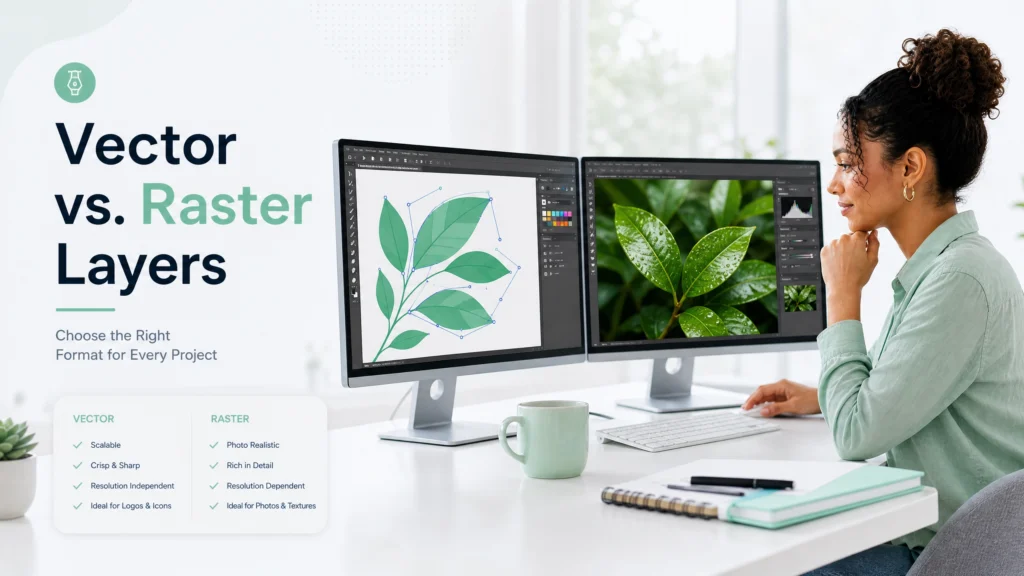
Should you watermark the actual vectors, or flatten everything first?
Always deliver flattened visual assets. Always use raster.
Here is why: vector watermarks are useless.
If you place a transparent logo over a live Figma frame, the client can just click the layer and hit “delete.”
It takes two seconds to remove your protection.
Instead, export your entire frame as a high-resolution PNG or JPG.
Bring that flattened image back into a new Figma file.
Then, apply your watermark—like a 5% opacity grid or repeating logo—and flatten it again.
Now, the watermark and the design are one single image.
They cannot be separated. The developer cannot inspect the CSS buttons.
This comparative approach—Raster vs. Vector—is the core of UI protection.
If you are worried a client steals your code or designs, this single habit stops them cold.
Before we move to link permissions, use this tool I built to calculate the exact risk level of your current delivery method.
How to Secure Figma Share Links Before Sending to Clients
Are your share settings secretly working against you ?
The solution is simple but often overlooked. You must alter the advanced share settings.
When you click “Share” in Figma, do not just copy the link.
Change the setting from “Anyone with the link can view” to specific email invites if possible.
More importantly, click the settings gear. Uncheck “Viewers can copy, share, and export from this file.”
This disables the ability to duplicate the file to their own workspace.
It disables the inspect panel for developers.
This is incredibly important when protecting yourself when working with international clients, where enforcing IP law across borders is a nightmare.
Under the Berne Convention, your copyright is recognized globally.
But practical enforcement is too expensive. Prevention is your best defense.
Restrict the link. Keep them on a tight leash until the final payment clears.
Why Adding a Simple IP Notice Can Protect Your Final Payment
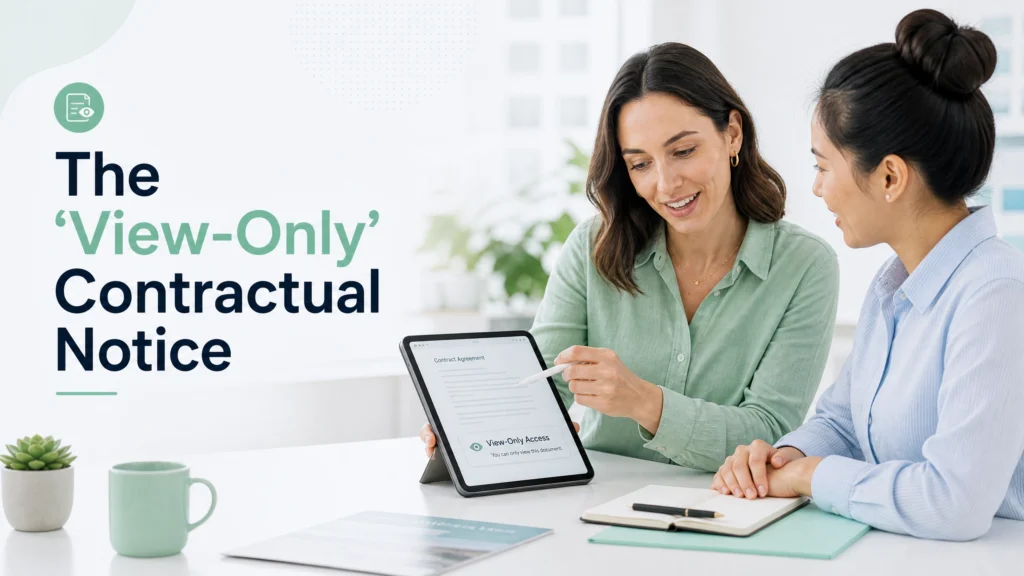
Can a simple text box save your final invoice ?
Yes, it can.
The solution is to place a clear, non-threatening legal notice directly on the Figma canvas.
Create a text layer outside the main presentation frames.
Write something simple: “This file is a conceptual presentation. IP rights and high-resolution assets transfer upon final invoice settlement.”
Why does this work? Because it removes ambiguity.
If they try to screenshot the work and run away, they cannot claim they thought the project was finished.
It proves malicious intent if you ever need to escalate.
If your client ghosted after the invoice, this text box is a piece of evidence.
It shows you communicated the terms clearly inside the deliverable itself.
It sets a boundary calmly and professionally.
Step-by-Step: Secure UI/UX Design Delivery Workflow
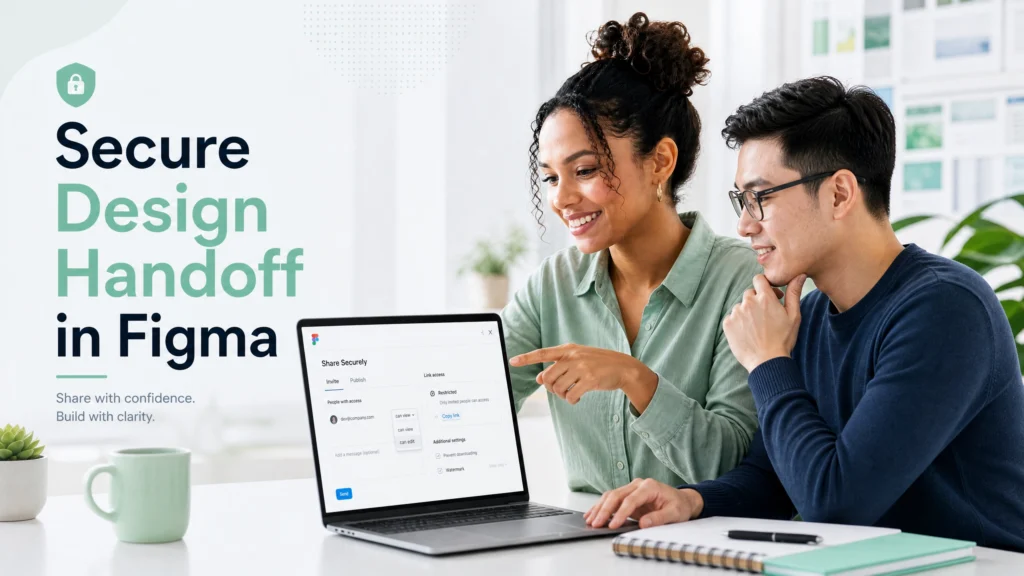
Here is the exact step-by-step workflow I use before every client review. No filler. Just the raw process.
Step 1 : Export Your Frames as High-Resolution Images
First, open your working Figma file containing the live vector frames.
Select all the high-fidelity presentation screens you want to show the client.
Go to the export panel on the right side of your screen.
Change the export format from SVG or PDF to PNG or JPG.
Set the scale to 2x or 3x so the design looks crisp on retina screens.
Hit export and save them to a local folder.
Step 2 : Create a Clean Presentation File
Next, close your working file.
Look, never invite a client into your actual workspace.
Create a completely new, separate Figma file just for this presentation.
Drag and drop your newly exported high-resolution PNG images into this new file.
Your designs are now flat raster images. The live text and vector layers are gone.
Step 3 : Build and Apply the Watermark Grid
Now, create your protective overlay.
Draw a simple diagonal text line across the canvas or create a repeating logo pattern.
Change the color to white or light gray.
Drop the layer opacity down to 5% or 7%.
Place this overlay directly on top of your flattened design frames.
Select both the design image and the watermark layer, right-click, and select “Flatten” or press Ctrl + E.
Step 4 : Drop the Legal Notice on the Canvas
Here is the thing: you must make your terms clear visually.
Pick a spot right next to your presentation frames.
Create a bold, clear text box.
Type out your conceptual notice clearly:
“Review Copy Only. Source files and intellectual property rights transfer upon final invoice clearance.”
Keep it professional, calm, and highly visible.
Step 5 : Lock Down Your Share Link Permissions
Finally, click the blue “Share” button in the top right corner.
Change the general access setting to “Anyone with the link can view.”
Click the settings gear icon inside the share window.
Uncheck the box that says “Allow viewers to copy, share, and export from this file.”
Copy the link. You are now ready to send it to the client safely.
Case Study : How a $15K UI Project Was Lost Due to Open File Access
What happens when you ignore these steps ?
Let me tell you about a real scenario.
A senior freelancer designed a complex SaaS dashboard for a mid-sized client.
The relationship was great. Trust was high.
The freelancer sent over the live Figma link for final review. No watermarks. Edit access left on.
The client said they needed the weekend to review it with the board.
Monday came. No response.
Wednesday came. Still nothing.
By Friday, the client’s internal dev team had already stripped the CSS and SVGs from the file.
The freelancer was stuck wondering what is the exact follow-up timeline to use.
When he finally got a reply, the client claimed the work “wasn’t a fit” and demanded a full refund over one bug in the prototype.
They kept the assets and refused to pay the final $15,000.
If the freelancer had rasterized the files and restricted the link, the client’s devs would have hit a brick wall.
They would have been forced to pay to get the usable assets.
Proof Checklist : How to Protect Yourself in a Payment Dispute
How do you prove the work is yours if things go wrong ?
Keep this simple checklist handy for every project.
- Timestamped Drafts : Keep your original, unflattened Figma files completely private. The version history is your proof of creation.
- Email Trails : Always email the presentation link. Never just drop it in a Slack chat where messages can be deleted.
- The Export Log : Take a screenshot of your restricted share settings before sending.
- The Contractual Notice : Ensure your view-only text box is visible in the file.
Under the US Copyright Office Circular 40, your visual design is protected the moment it is fixed in a tangible medium.
But having clear, organized evidence is how you recover an unpaid invoice yourself without paying expensive litigation fees.
UI Delivery Risk Levels : How Safe Is Your Current Process ?
How much danger is your current process putting you in ?
Let’s look at the risk levels.
High Risk : Sending live vector files. Open edit permissions. No contract text on canvas.
Result: High probability of asset theft and unpaid invoices.
Medium Risk : Sending view-only vector files. Export permissions disabled. No watermarks.
Result: Better, but developers can still screenshot and trace layouts easily.
Low Risk : Flattened raster layers. 5% grid watermark applied. Export disabled. Contract notice on canvas.
Result: Maximum protection. Client can view the aesthetic perfectly, but cannot extract usable assets.
Keep your workflow in the Low Risk category to effectively prevent scope creep and secure your leverage.
Does Your Country’s Law Affect UI/UX Ownership Rights ?
Jurisdiction always matters. But as a freelancer, you have more legal leverage than you probably realize.
In the United States: Under US copyright law, the creator of a visual work is the initial owner. Unless you sign it away, that design is entirely yours.
The US Copyright Office strictly defines the “Work Made for Hire” doctrine. If you are a standard W-2 employee, your employer owns your output.
But freelancers are independent contractors. You do not fall under that umbrella automatically.
Without a written agreement explicitly stating the project is a “work made for hire,” you retain the copyright. Academic legal repositories, like the one maintained by Cornell Law School, confirm this default ownership structure.
I have to tell designers this constantly: your client does not own the UI just because they paid a 50% deposit. They own it when the final invoice is cleared and the contract says so.
Globally: International frameworks like the Berne Convention and laws managed by the UK Intellectual Property Office follow similar logic, ensuring independent creators generally retain their default copyright unless explicitly assigned via a written contract.
The takeaway ? The law is mostly on your side.
But the law is incredibly slow. Watermarking is fast.
Do not rely purely on federal codes or international treaties to retain control over final deliverables income. Rely on flattened PNGs.
How to Respond When Clients Ask for Source Files Before Payment
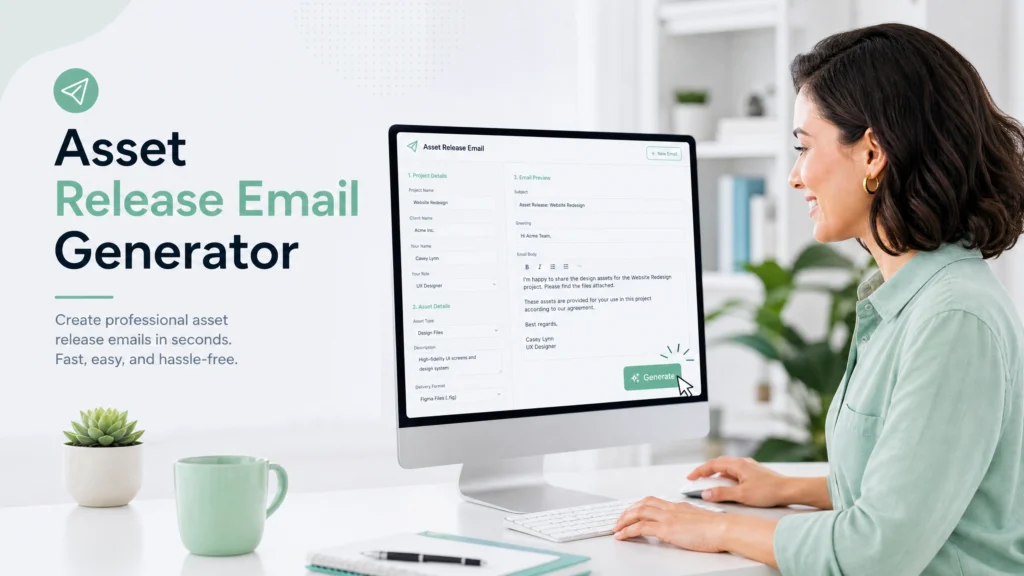
How do you tell a client they can’t have the source files yet ?
When a client asks for the live file before paying, you need to be polite but firm.
Use this exact script. I use it all the time.
Asset Release Email Template
Click anywhere inside the fields below to customize the copy before saving.
Hi [Client Name],
I’m thrilled you love the design direction!
As per my standard workflow, the current link contains the flattened presentation assets for your visual review.
Once the final invoice (attached) is settled, I will immediately transfer ownership of the master Figma file.
This will include all live vectors, CSS data, and developer handoff assets.
Let me know if you have any questions about the invoice!
Best,
[Your Name]
This tone is calm. It is trustful. But it is deeply protective.
It casually reminds them of the boundary without sounding like a threat.
FAQs
Will a watermark make my design look unprofessional ?
Not if done correctly. A 5% opacity white or light gray diagonal line pattern over a flattened image is barely noticeable to the eye, but ruins automated extraction tools.
Can’t a client just recreate my design from a screenshot ?
Yes, they can trace it. But tracing takes time and money. Your goal isn’t to make theft impossible; your goal is to make theft more expensive than just paying your invoice.
What if the client demands live files mid-project ?
Remind them of the contract. Live files are final deliverables. Mid-project reviews are for visual approval only. Stand your ground.
Does Figma have built-in watermarking ?
No. Figma wants sharing to be frictionless. You have to manually create friction to maintain payment control business.
Is a restricted link enough protection ?
No. A restricted link stops the easy download, but the inspect tool can sometimes still be manipulated by clever developers. Flattening the image is the only true protection.
Look, running a freelance business is hard enough.
You spend hours perfecting your craft. You deserve to be paid for every single pixel.
Stop handing over your leverage for free.
Implement the raster-and-restrict method today.
Protect your work. Protect your peace of mind.
And most importantly, secure your negotiation position – cash flow.
Author Box
Adv. Sagar Haribhau Shirsat is an active legal professional specializing in commercial transaction architectures, cross-border corporate compliance, and digital debt recovery systems. He designs strategic asset-protection and recovery frameworks that help freelancers, independent contractors, and global agencies defend their cash flow and enforce their billing rights.
Connect via his Official Professional LinkedIn Profile or About Us page.
Disclaimer: This guide is intended for educational purposes and risk management analysis. It does not replace formal legal counsel. For specific cross-jurisdictional contract disputes, always consult a certified attorney or local legal advocate.