Here is the thing about getting stiffed by a client: standard advice rarely survives contact with reality.
If you ask a traditional lawyer what to do when a client stops paying for a web design project, they will tell you to draft a formal demand letter.
They will tell you to wait. They will tell you to threaten litigation.
I am not a courtroom lawyer. I am a strategist who has spent years in the trenches helping independent creatives protect their cash flow.
I can tell you right now that sending angry legal threats while leaving your Figma links wide open is like locking your front door but leaving the keys in the ignition of your car.
It makes zero practical sense.
Most designers think the answer to an unpaid invoice is to instantly nuke the client’s access. Just hit “delete” and walk away.
That is the fastest way to get sued for business disruption. You do not want to destroy files. You want to pause access.
There is a surgical, calm, and entirely legal way to handle this.
Before we dive into the deep psychology of why clients ghost, let me give you the exact operational answer you came here for.
Table of Contents
How to Revoke Access to Figma Files After Non-Payment Without Legal Risk
If you are past the 30-day mark on an unpaid invoice, here is exactly how to revoke access to design files safely, without triggering a legal nightmare.
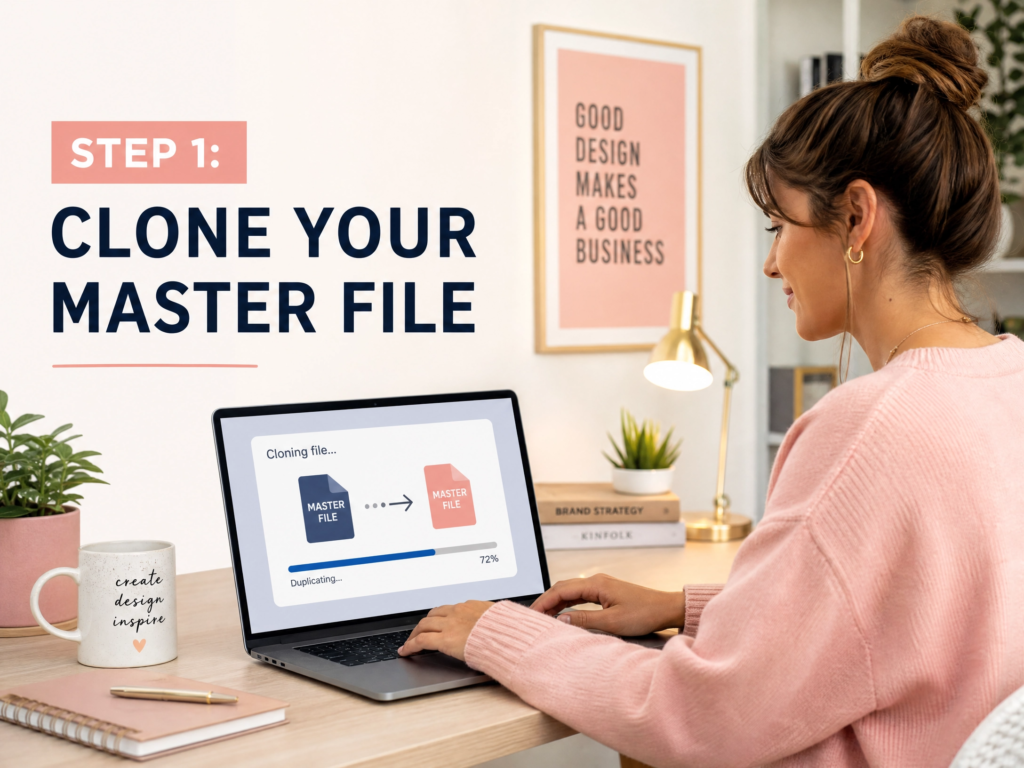
1. Clone the Master File Immediately
Never alter the original file while the client has access. Duplicate the entire Figma file to your private drafts. This is your untampered evidence.
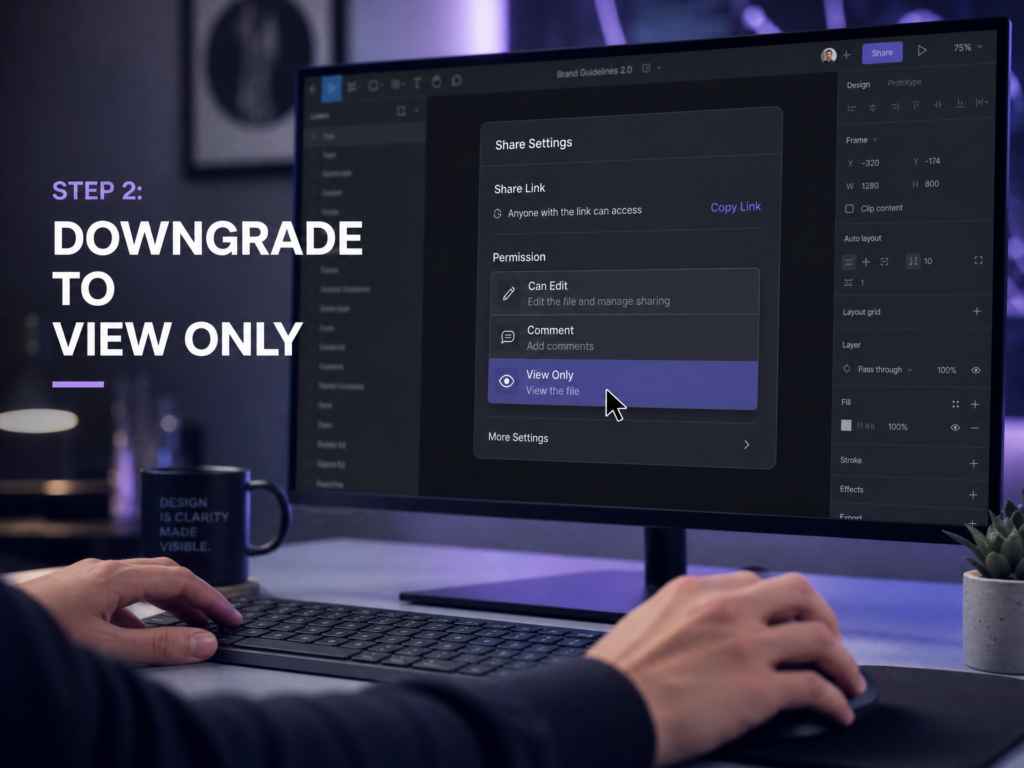
2. Downgrade Permissions on the Live Link
Go to the active file the client possesses. Change their permission from “Can Edit” to “Can View.”
3. Restrict Developer Handoff Features
In the share settings, uncheck “Allow viewers to copy, share, and export from this file.” This stops their internal devs from mining your CSS.
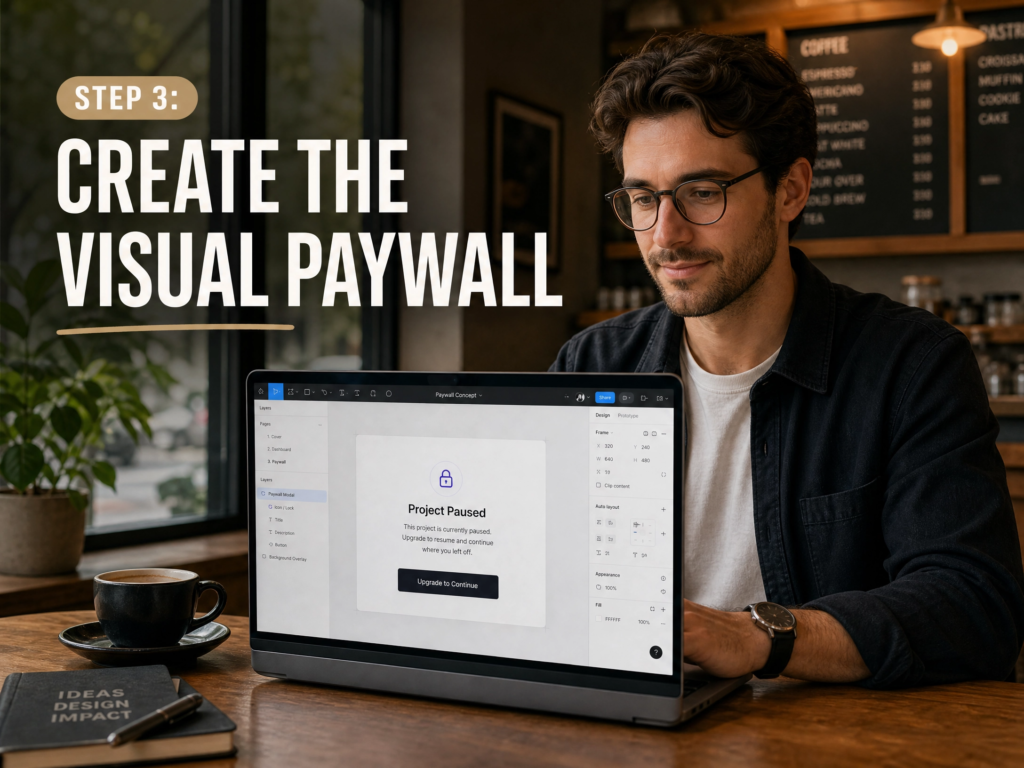
4. Create the ‘Paywall’ Frame
Add a new, massive frame over your main designs. Set the background to a calm, neutral color. Add a professional note stating the project is paused pending account reconciliation.
5. Move the Original Designs to a Hidden Page
Take the actual design frames and move them to a new page within the file. Name that page something innocuous like “Archive.”
You have not deleted their work. You have not destroyed property. You have simply restricted their ability to extract commercial value from unpaid labor.
Now, let me explain exactly why this specific protocol is necessary, and how to execute it without ruining the relationship forever.
When Should You Revoke Access (30-Day Rule Explained)
Look, I need you to understand how modern development teams actually work.
Back in the day, a designer had to physically export assets, slice JPEGs, and email zip files to a developer. You controlled the distribution.
Today, Figma is a live, breathing database. It is not just a canvas. It is a repository of code.
If a client has a live Figma link, they do not need you to finish the project.
Their internal developers can simply open the link, click on the inspect panel, and extract your typography tokens, spacing rules, and SVG assets.
I have seen countless freelancers get ghosted simply because the client realized they already had everything they needed.
The client’s logic is brutal but simple: why pay the final 50% milestone if the dev team can just scrape the live file?
This is why you must understand Net 15 vs Net 30 vs Net 45 payment terms before sharing live design access.
If you leave your files fully open while an invoice ages past 30 days, you are essentially providing free, unlimited hosting for your own stolen intellectual property.
You must learn how to protect your assets early. Before reaching this stage, learn how to watermark your UI/UX deliverables without ruining presentation.
But when the watermark isn’t enough, and the invoice is actively ignored, you are dealing with an open vulnerability. You have to close the tap.
At this point, leaving access open is not professionalism—it is financial leakage.
The 30-Day Silent Run
Let’s talk about the psychology of a ghosting client.
When an invoice goes unpaid for a few days, it is usually just an oversight.
When it goes unpaid for two weeks, it might be an administrative bottleneck.
But when you hit day 30, and your emails are being ignored while their cursors are still moving around in your Figma file? That is a choice.
That is what I call the 30-Day Silent Run.
They are testing the fences. They are waiting to see if you are a professional business owner or an amateur they can push around.
Often, designers panic here. They wonder, My Client Ghosted Me After I Sent the Invoice—What Do I Do Now?
The worst thing you can do is send an emotional, needy email asking if they are mad at you.
The second worst thing you can do is continue working, hoping they will suddenly feel guilty and pay you.
You need to Stop Working for Free : How to Prevent Scope Creep From Eating Your Profits and start acting like a vendor whose terms have been violated.
If they are a larger agency, they might just be caught in bureaucratic red tape.
If that is the case, you don’t necessarily need lawyers yet. You just need to break the pattern.
Sometimes, realizing you are Stuck in an “Accounting Loop”? Try This Psychological Trick to Get Paid Fast is all it takes to shake the money loose.
But if the silence continues, you have to transition from a creative partner into a risk manager.
You have to accept that they are actively using your work.
When you find yourself asking What to Do When a Client Uses Your Work But Refuses to Pay You, the answer is to initiate the Digital Eviction Protocol.
Case Study : The Silent Extraction
Let me share a real scenario from a mid-level product designer I consulted for last year. Let’s call him David.
David was designing a massive fintech dashboard for a startup.
The client paid the 25% deposit flawlessly. David got to work.
He delivered the phase-two designs via a live Figma link. He sent the invoice for the next milestone.
Crickets.
One week passed. Then two. David sent polite follow-ups. No response.
I told David to check the version history in his Figma file.
Sure enough, the client’s lead developer had been logging in every day at 9:00 AM, exporting SVG icons, and copying CSS code from the inspect panel.
The client wasn’t busy. They were actively mining his file. They had ghosted him because they felt they didn’t need him anymore.
David wanted to delete the file entirely. I stopped him.
If he deleted the file, the client could claim he breached the contract by destroying project assets, muddying the waters.
Instead, we executed a calm, step-by-step revocation. We downgraded permissions. We hid the main pages. We left a polite “Payment Required” screen.
The client called David within 45 minutes. The invoice was paid that afternoon.
Key Takeaway From This Case :
- Clients may actively use your files while ignoring payment
- Deleting files increases your legal risk
- Restricting access forces immediate response without breach
Safe Way to Revoke Client Access Without Getting Sued
Here is the exact visual flow of how you should handle access revocation.
The Digital Eviction Protocol
A chronological cash-flow defense sequence for modern web and product designers.
Invoice Becomes Overdue
The defined payment term is breached. No operational adjustments are made yet.
Friendly Reminder Email
A professional, system-oriented notification sent directly to accounting or the primary contact.
Firm Follow-Up Email
Formal notification outlining standard payment terms and requesting a firm clearance date.
Check Figma Version History
Audit the active file to trace engineering patterns. Identify if internal development teams are actively extracting CSS or asset packages without permission.
Initiate Digital Eviction
Enforce operational leverage. Restrict active collaboration links without destroying the master deliverable files.
- Step 1: Clone Master File to Private Workspace
- Step 2: Downgrade Shared Link Permissions to ‘View Only’
- Step 3: Uncheck ‘Allow viewers to copy, share, and export’
- Step 4: Hide Design Pages Behind a Static Paywall Frame
Send Paywall Notice Email
Transmit the automated administrative hold alert. Position the access hold as standard account compliance policy, leaving a frictionless path to payment.
This structured approach is vital. It proves you acted reasonably.
It shows you gave them ample warning. It ensures you have a paper trail if things escalate.
Because eventually, you need to know When is it Officially Time for a Freelancer to Take Legal Action?
Following a strict timeline protects you from claims of erratic or unprofessional behavior.
If you are unsure of exactly when to send those early emails, study The Exact Follow-Up Timeline for Late Freelance Invoices (That Actually Works).
Step-by-Step Access Revocation
Let’s break down the exact mechanics of safely revoking access to your Figma files.
You must be precise here. We are turning off the tap, not blowing up the plumbing.
The Duplicate Rule
Before you touch a single setting on the live file, duplicate it. Keep this duplicate in a private team space.
This duplicate is your baseline. If the client tries to claim you never delivered the work, this timestamped duplicate proves you did.
The Permission Downgrade
Navigate to the “Share” button in the top right corner of Figma.
Find the client’s email addresses or the general link settings. Switch everything from “Can Edit” to “Can View.”
If they were using your file as a collaborative workspace, that stops immediately.
The Export Lock (Crucial)
This is the step most freelancers miss.
Click the gear icon in the Share menu. Uncheck the box that says “Allow viewers to copy, share, and export from this file.”
This is the kill switch for developers. They can no longer inspect code, download images, or duplicate the file to their own drafts.
They can look, but they cannot touch.
The Visual Paywall
Create a new page in the file. Name it “Status.”
Draw a massive frame. Use a clean, professional font. Write something like this:
“Project Paused. Development handoff and asset export features have been temporarily disabled pending invoice reconciliation. Please contact [Your Email] to resume access.”
Move all your actual design pages into a folder or simply delete them from this specific live file (since you safely have the duplicate).
You have now safely evicted them from the active workspace without destroying their property.
Evidence Checklist
If you ever need to prove your case, you need airtight documentation. Gather these items before you restrict access.
- Timestamped Invoices : Proof of when payment was due.
- Delivery Emails : Proof you sent the Figma links initially.
- Figma Version History Screenshots : Proof their team was actively viewing or exporting assets.
- Contract/SOW : The document stating that IP rights do not transfer until final payment is cleared.
- Communication Logs : All friendly reminders and follow-ups showing your good faith efforts.
The Legal Reality : US Law vs. Global Operations

Let’s ground this in actual legal doctrine. Why are we executing this eviction so carefully instead of just hitting “delete”?
Look, I have seen freelancers panic and destroy files. It is a terrible move.
Because while you might feel like a subordinate when a client barks orders, under the law, you are an independent entity.
In the United States, intellectual property law is distinctly on your side, provided you understand how to wield it.
The United States Legal Baseline Under the US Copyright Act of 1976 (Title 17), you hold the exclusive copyright to your work from the very moment of creation—or “fixation in a tangible medium,” as the statute dictates.
Application of these principles may vary depending on contract terms and jurisdiction.
Clients often incorrectly assume that paying a small deposit automatically makes your output a “work made for hire.” It does not.
According to the US Copyright Office’s official guidelines (Circular 30), unless you are a W-2 employee or signed a very specific written agreement transferring rights, you own the designs.
Unless your freelance contract explicitly states that IP rights transfer upon delivery, the legal default is that rights transfer upon final payment.
If the client hasn’t paid the invoice, they do not own the Figma file. It is still legally your property.
Restricting access to your own property to prevent unauthorized commercial use is generally protected. You are actively mitigating your damages.
Legal scholars at institutions like Cornell Law School’s Legal Information Institute note that in a breach of contract scenario—like non-payment—the non-breaching party has a right and duty to mitigate losses.
Turning off the tap to prevent a client from stealing unpaid code is a perfectly reasonable mitigation step.
The United Kingdom & “Reasonable Notice” If you are dealing with a UK client, the Copyright, Designs and Patents Act 1988 follows a similar overarching copyright structure.
However, UK contract law heavily favors the concept of “reasonable notice.”
Shutting down access at 2:00 AM without warning can occasionally lead to messy counter-claims of business interruption. This is why I always tell you to send the notice first.
The Indian Contract Act For developers working out of India, the Indian Contract Act, 1872, provides “unpaid seller rights.”
However, digital goods often sit in a muddy legal gray area. If you suddenly halt access to an international client without a formal documented warning, they might allege a “deficiency of service.”
The International Reality Check Yes, under the Berne Convention, your US copyright protection is technically recognized across international borders.
But let’s be brutally honest here. Enforcement is notoriously difficult, incredibly slow, and wildly expensive.
Are you really going to hire a solicitor in London or a lawyer in Mumbai to chase down a $3,000 final milestone? No, you are not.
This is exactly why you must know How to Protect Yourself When Working With International Clients.
You cannot rely on a foreign courtroom to save your cash flow. You must rely on immediate operational leverage.
By downgrading access instead of deleting files, you stay completely legally compliant under US law while forcing their hand globally.
How to Deliver the ‘Paywall’ Notice

The way you communicate this revocation is just as important as the revocation itself.
You must remain radically calm. Do not apologize. Do not threaten.
Be surgical. State the facts. Offer the solution.
If you get angry, you lose the high ground. If you are overly apologetic, they will sense weakness and continue to delay.
You need to frame this as an automated, standard business procedure. It is not personal. It is just policy.
Here is a tool you can use to generate the perfect notice.
Access Revocation Email Generator
Administrative Notice Generator
Draft a legally defensive, high-leverage account pause notice using standard compliance vocabulary.
Notice the language in that template. “Standard accounting protocol.” “Administrative hold.”
It removes the personal friction. It makes it sound like a system simply triggered an action based on their non-payment.
If they are a larger company, they might blame their finance department.
If you are dealing with a messy chain of command, you might even need to ask yourself: Unpaid Subcontractor ? Here is When You Can Sue the End-Client Directly.
But the email remains the same. Calm, firm, and immovable.
Risk Matrix : Revocation Strategies
Not all file restrictions carry the same legal risk. You must choose your approach based on your specific situation.
| Strategy | Action Taken | Legal Risk | Business Impact |
| Low Risk | Downgrading to “View Only” and removing export rights. | Minimal. You are protecting IP pending payment. | High. Stops developers from mining CSS. |
| Medium Risk | Hiding design frames behind a “Payment Pending” paywall frame. | Low/Med. Might irritate client, but assets aren’t destroyed. | Very High. Forces immediate conversation. |
| High Risk | Completely deleting the Figma file or team workspace. | Severe. Can trigger claims of business disruption or data destruction. | Catastrophic. Burns the bridge permanently. |
Never choose the High-Risk option. There is absolutely no upside to deleting work you spent hours creating.
You want to leverage the work, not destroy it.
Quick Decision Section
Are you staring at your screen right now, paralyzed by indecision? Let’s make this simple.
If the invoice is 1-14 days late :
Do not touch the Figma files. Send friendly follow-ups. Give them the benefit of the doubt.
If the invoice is 15-29 days late :
Check the Figma version history. Are they actively working in the file? If yes, send a firm warning email about an upcoming “administrative pause.”
If the invoice is 30+ days late :
Execute the Digital Eviction Protocol immediately. Clone the file, downgrade permissions, restrict export access, and send the notice.
Do not bluff. If you say you are going to restrict access, you must actually do it.
Clients respect boundaries, but only if you enforce them.
FAQs About Revoking Figma Access
Can my client sue me for locking them out of a Figma file ?
Yes, a client can attempt to sue if you delete files completely. However, restricting access to “view only” due to non-payment carries very low legal risk because you are protecting your intellectual property.
What if they already downloaded the SVG assets and CSS ?
If assets were already downloaded, revoking access won’t stop current usage. However, it prevents future updates and limits further extraction of your work.
Does this work for other tools like Canva or Adobe XD ?
Yes. The “view-only restriction” method works across tools like Canva and Adobe XD because the principle is the same: restrict access without deleting assets.
Should I warn them before I revoke access ?
Yes. Always give a 24–48 hour notice before restricting access. This shows good faith and reduces legal risk.
What if the client claims the work wasn’t finished, so they shouldn’t have to pay ?
This is a classic delay tactic. Ensure your contract ties payments to specific delivery milestones, not subjective “completion” metrics. If you delivered the milestone, they owe the funds.
Final Thoughts on Protecting Your Work
Here is the raw truth. Nobody is going to protect your freelance business except you.
Clients will push exactly as far as you allow them to push.
If you leave your source files wide open while they ignore your invoices for weeks on end, you are teaching them that your deadlines do not matter.
You are teaching them that your money is not important.
You have to change that narrative.
By executing a calm, clinical access revocation, you instantly command respect. You shift the power dynamic back in your favor.
You aren’t throwing a tantrum. You are simply operating a professional business with strict accounts receivable protocols.
Learn the software. Know where the permission toggles are. Duplicate your files.
When payment stops, access stops. Not out of emotion—but as a controlled business response. That is how professionals protect both their work and their leverage.
About Author :
Adv. Sagar Haribhau Shirsat is an active legal professional specializing in commercial transaction architectures, cross-border corporate compliance, and digital debt recovery systems. He designs strategic asset-protection and recovery frameworks that help freelancers, independent contractors, and global agencies defend their cash flow and enforce their billing rights.
Connect via his Official Professional LinkedIn Profile and About Us.
Disclaimer : This guide is intended for educational purposes and risk management analysis. It does not replace formal legal counsel. For specific cross-jurisdictional contract disputes, always consult a certified attorney or local legal advocate.